
Appearance
Quick Start
This section will help you build a basic Muxen network from ground up.
Physically deploy
Prepare the list of all outputs and buttons.
Create or open a project
Using a web browser on the same network, open the Raken interface on the port 8080. For exemple http://192.168.0.1:8080.
TIP
The IP address of your Brain depends on your initial installation. If you don't remenber it, you can use a IP scanner tool to find it !
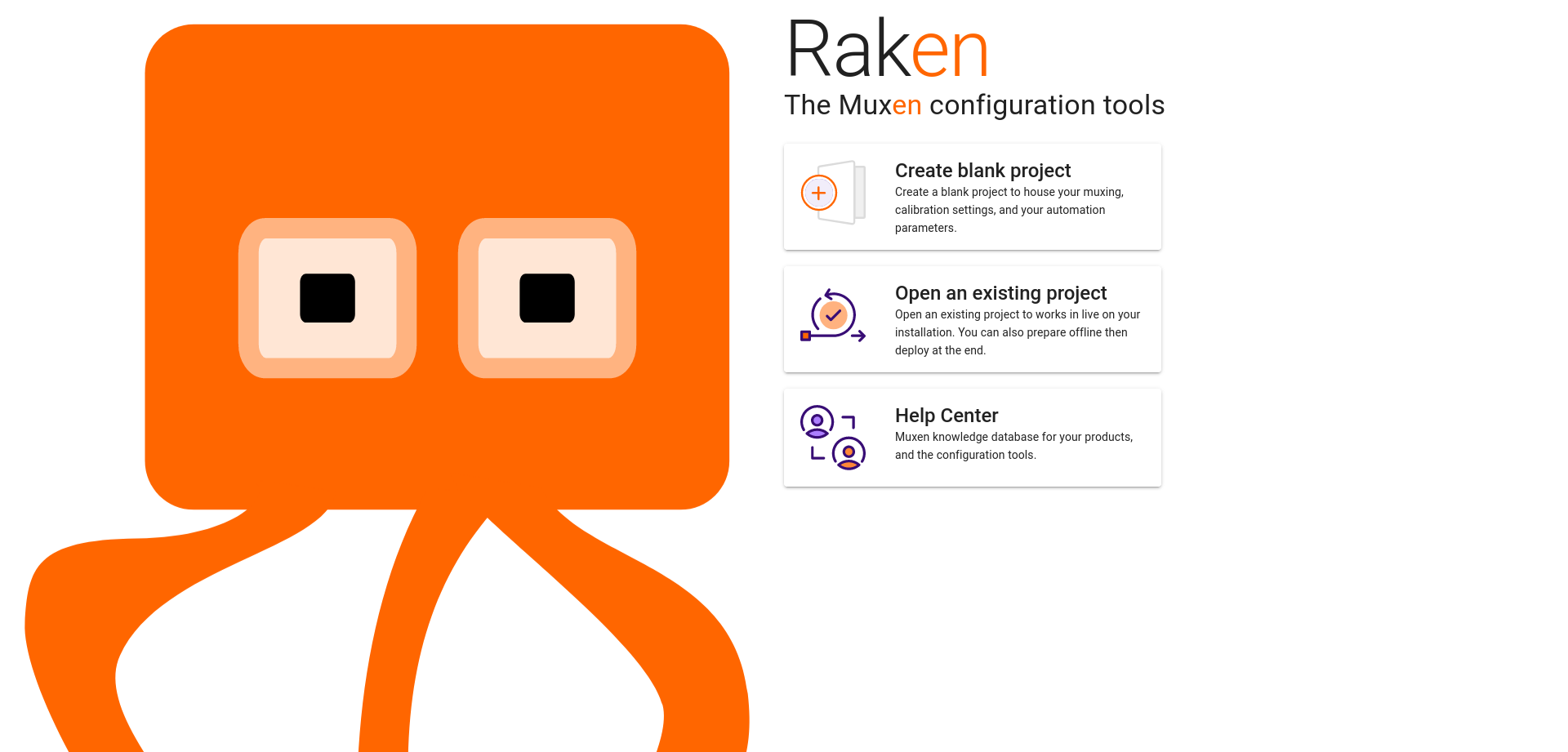
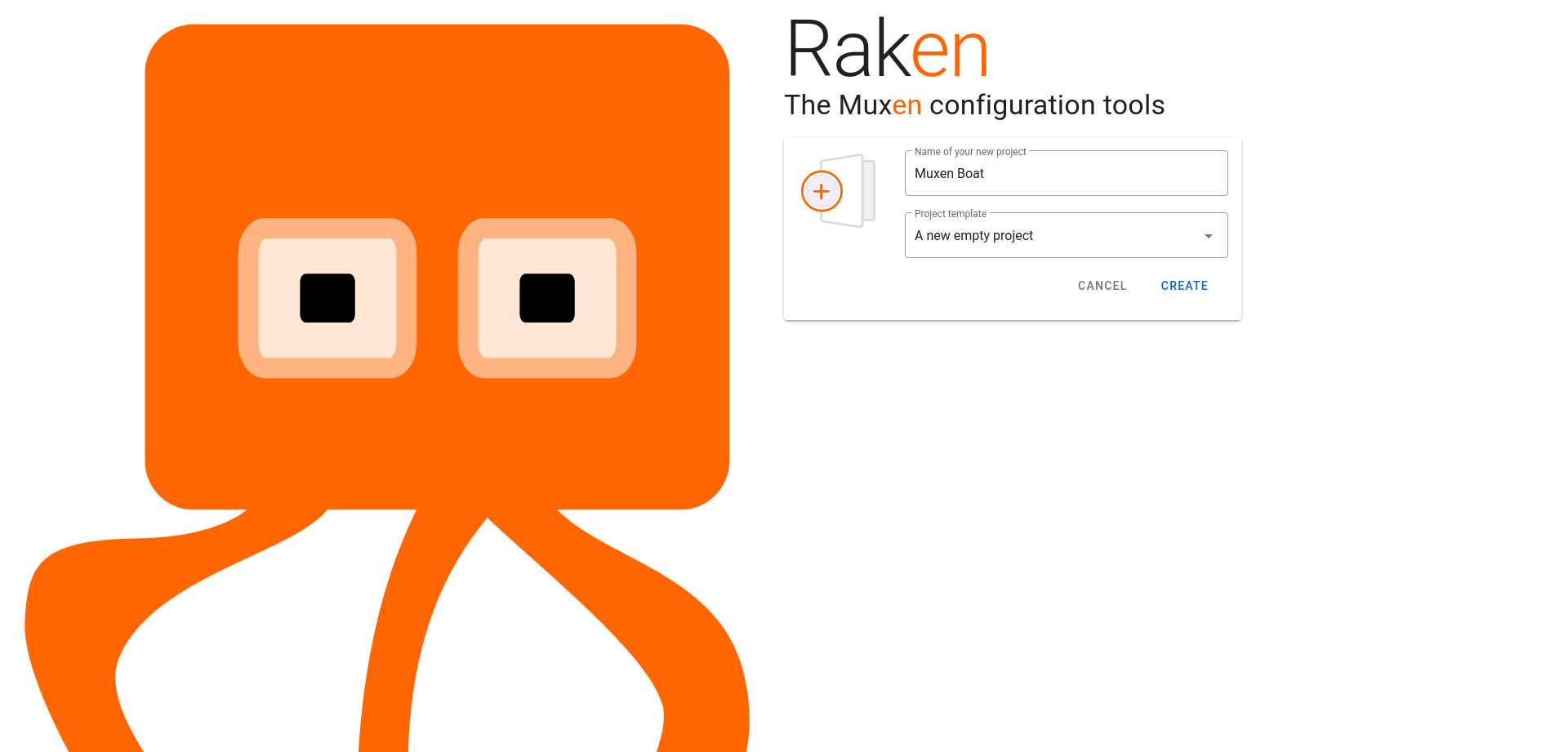
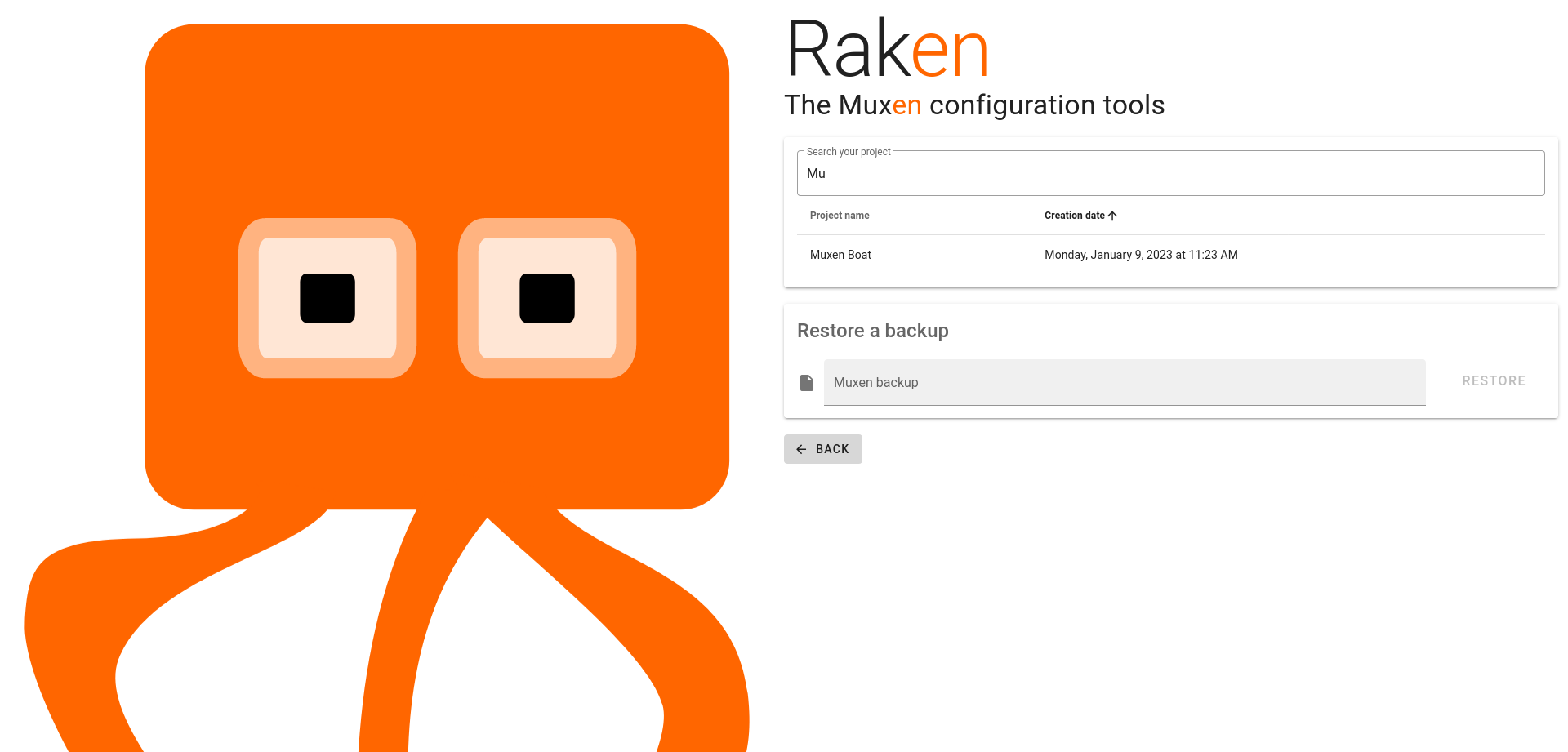
Then, you can open an existing project or create a new one. Your configuration will be saved directly in the Brain.
Add devices into your project
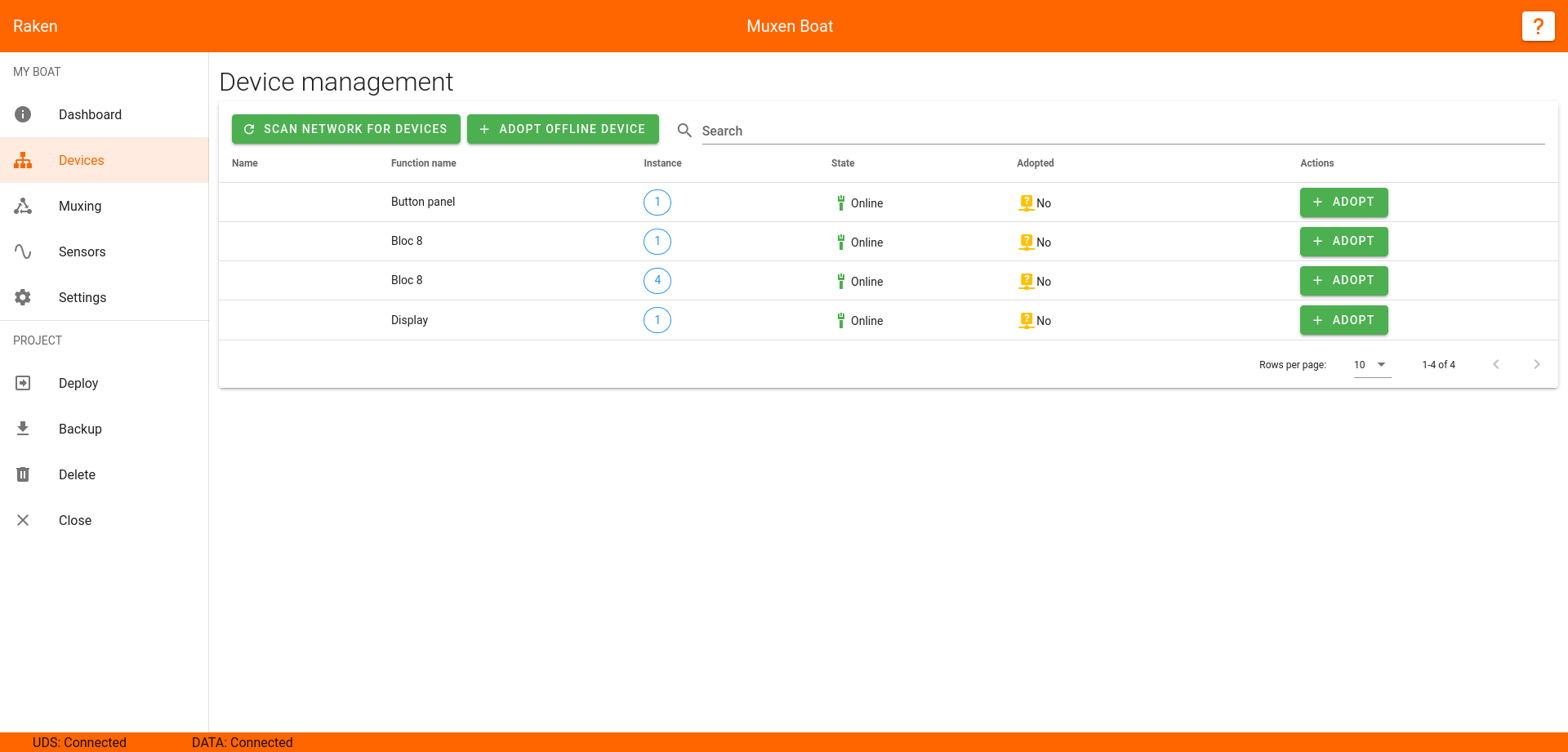
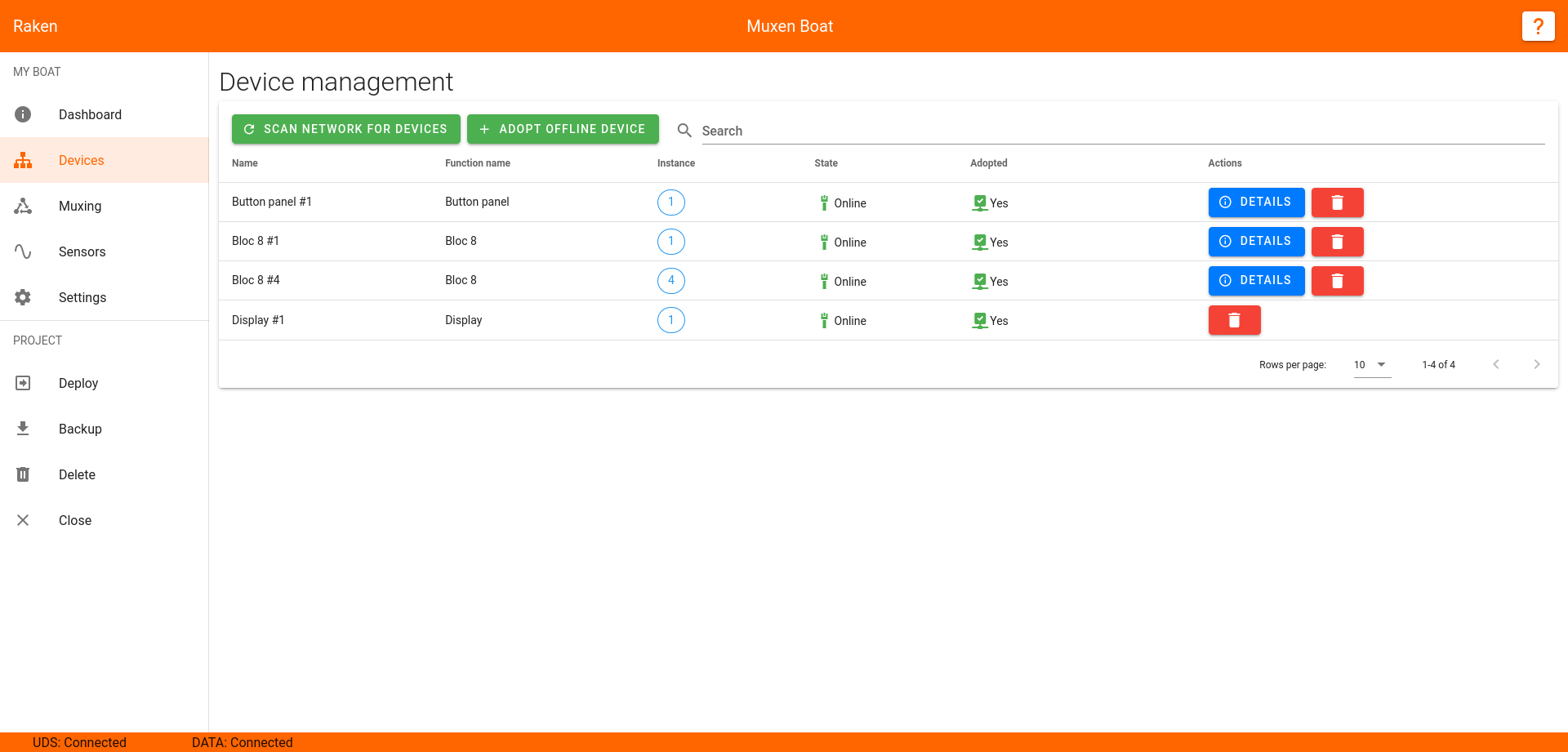
On the left panel, click on the device section. An automatic scan of the network will be perform during few seconds, and all detected devices will be show in a table.
Add wanted devices into your project using the Adopt button. Raken will automaticly read current settings from the adopted device and save it into your Raken project.
TIP
If you connect a new device on the network, you can use the Scan network for devices button to update the table.
Blink Keypads
Blink Keypad are not detected automaticly ! You can use the Adopt offline device button to add its to your project.
Blink Keypad are always 12 keys into the project. If you have smaller one, just use first buttons.
Set channels names
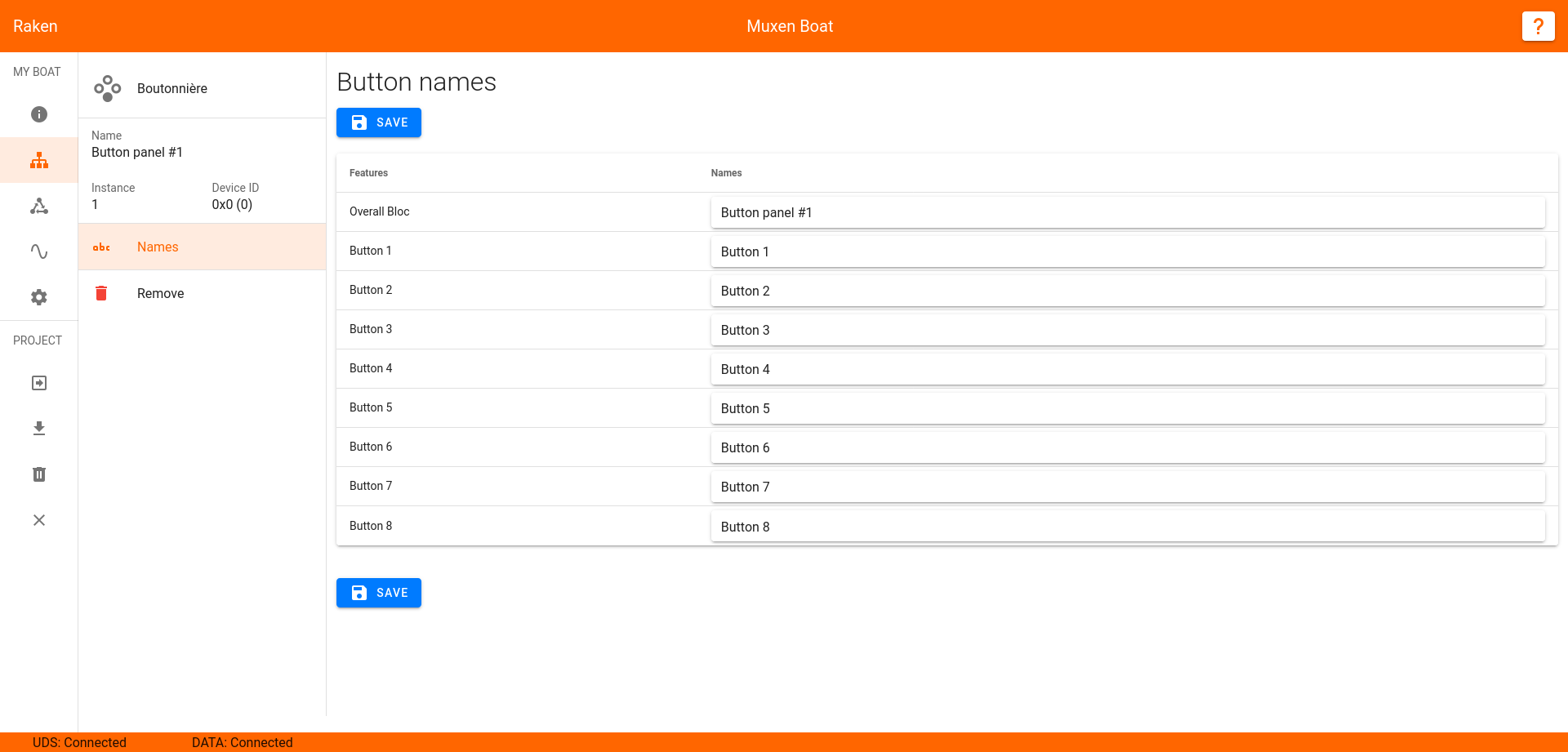
For each power outputs, buttons, digital inputs, and analog inputs, you should set a name. Theses names will be reuse in many part in Raken, including the muxing editor.
In the device section, click on the Details button of a device, then use the Names submenu.
Configure fuses
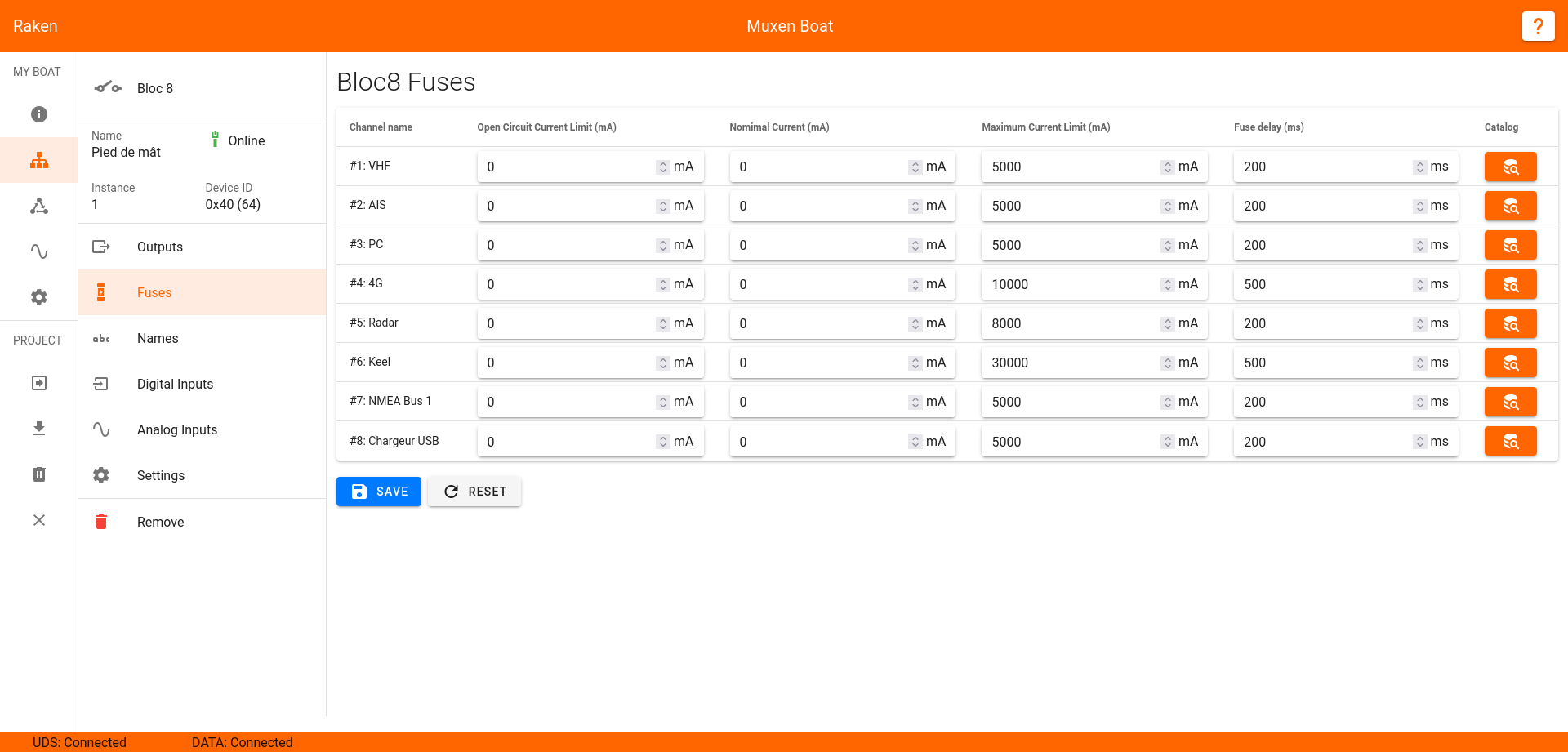
The fuse initial configuration is 5A with an allowed overload during 200ms.
Inductive loads
Outputs connected to inductive loads (i.e. pumps) may need a longer fuse delay (500ms).
Add multiplexing rule
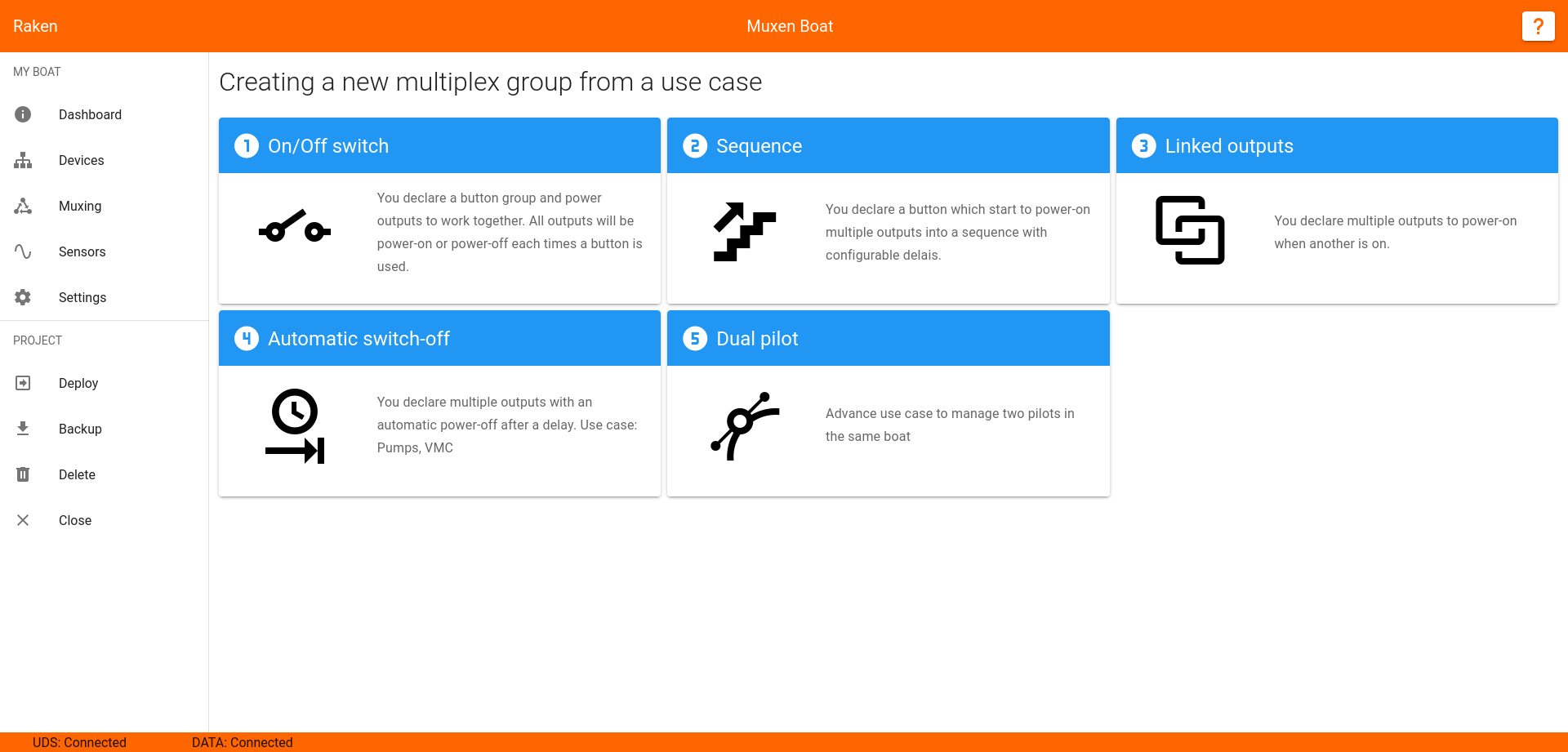
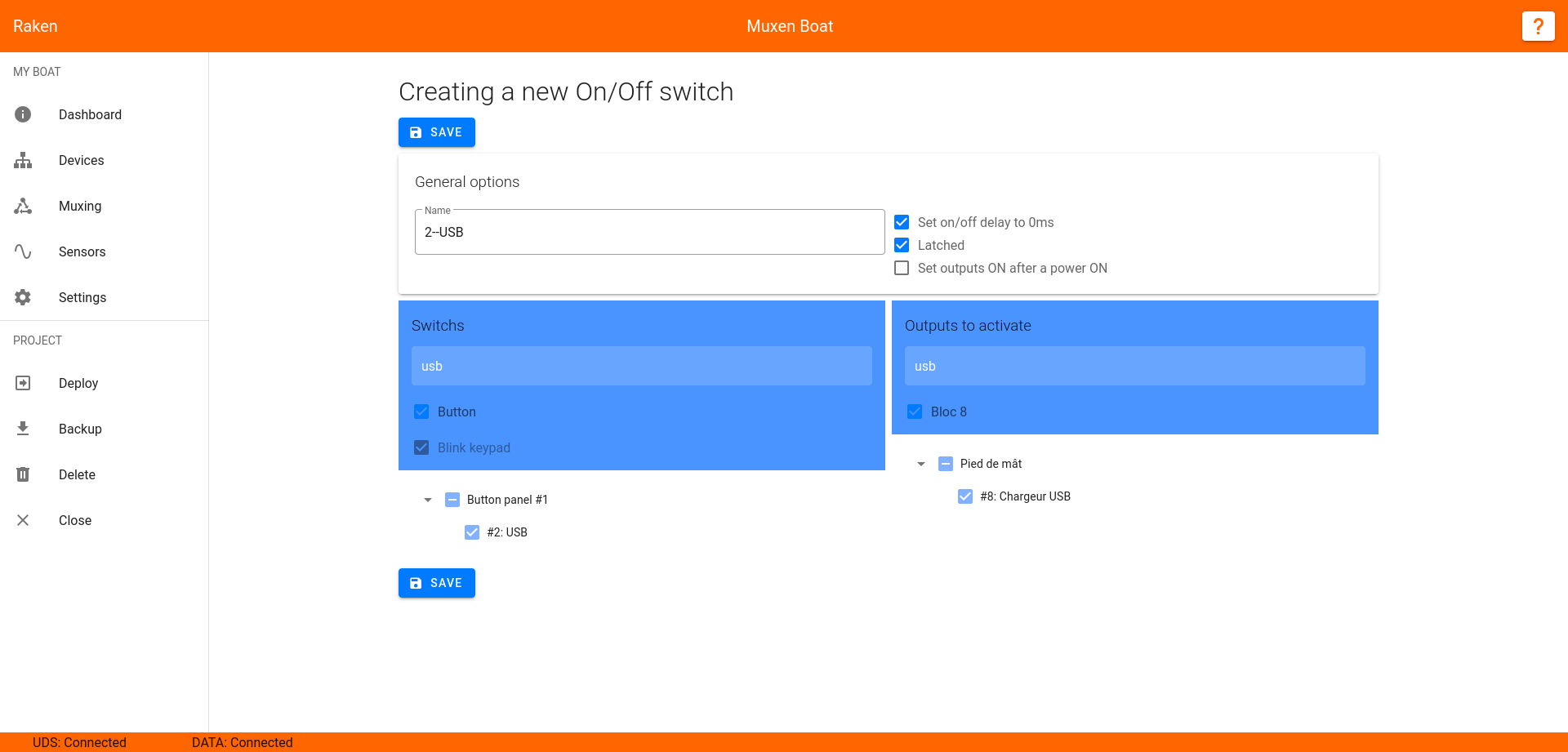
On the left panel, click on the muxing section. Select a template based on your use case, the most used one is the On/Off switch.
Deploy
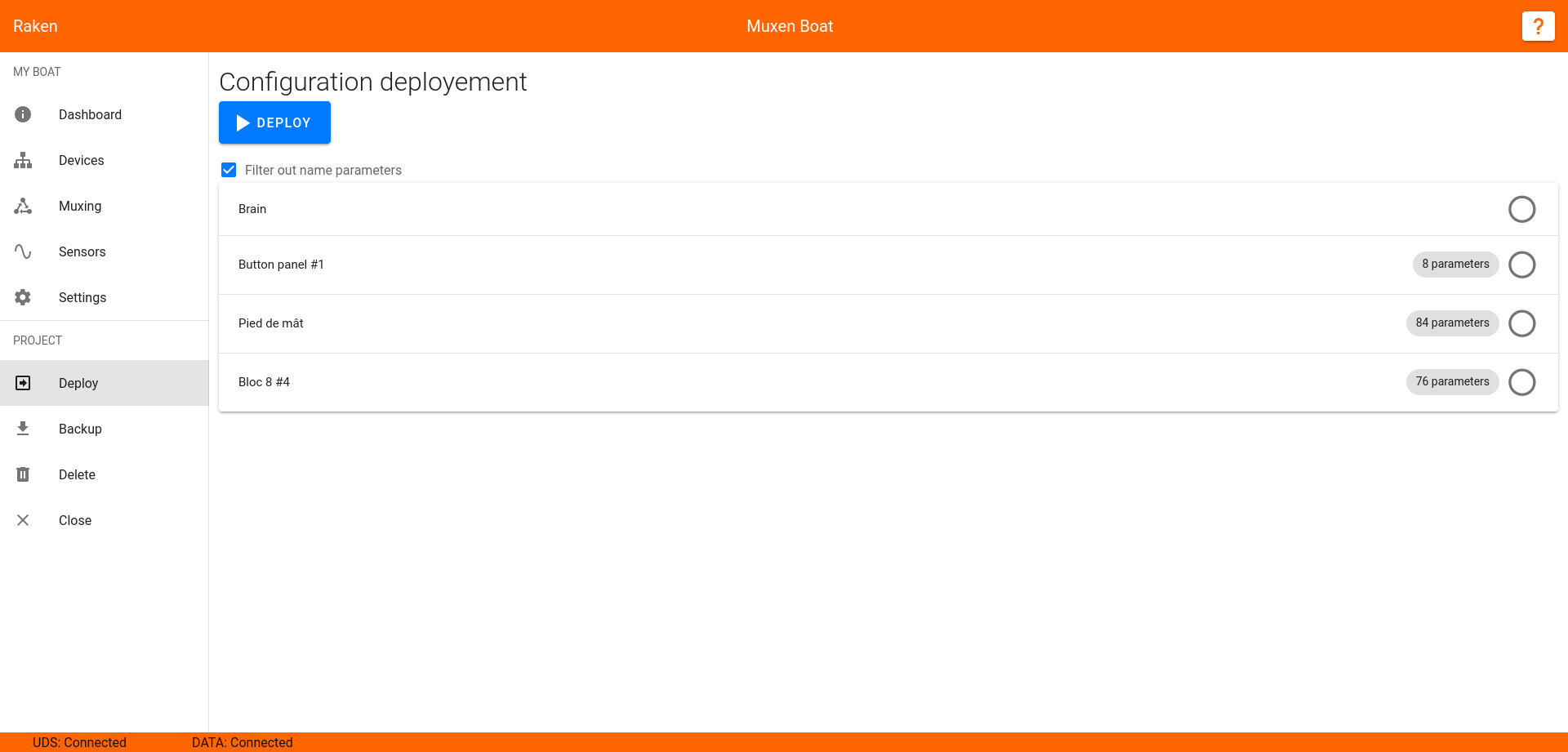
On the left panel, click on the deploy section. Raken will push the configuration to device one by one.
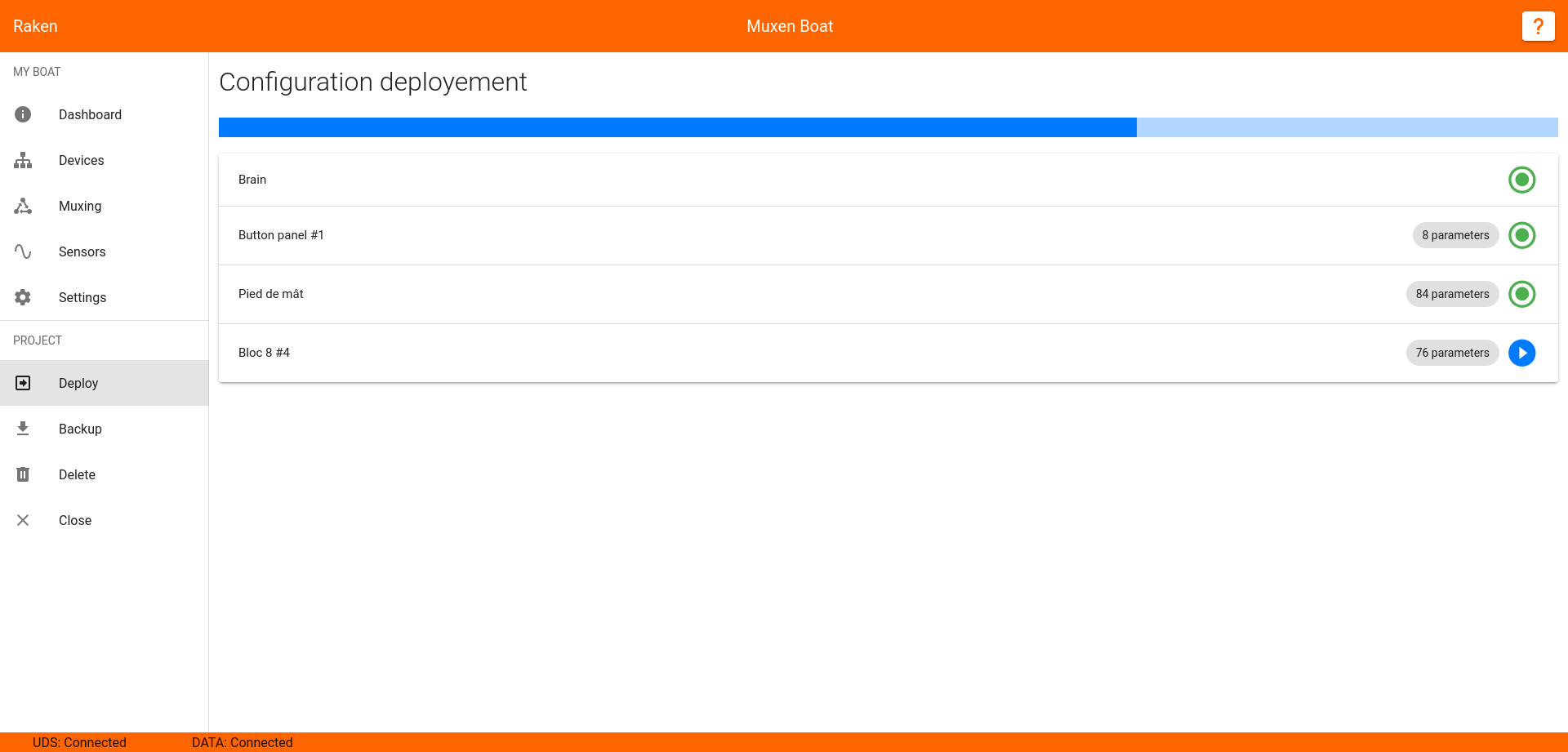
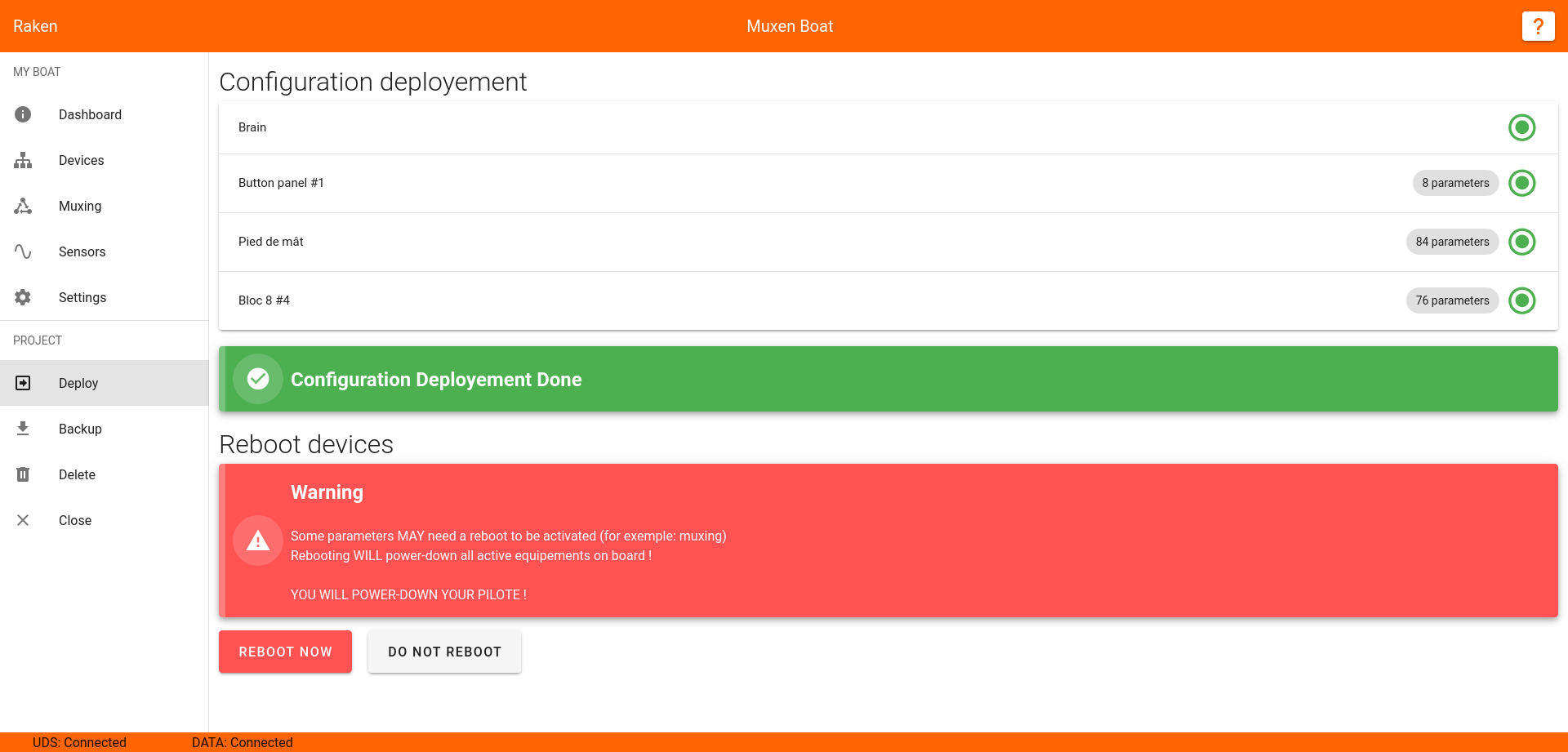
After all devices have received their configuration, you will be able to ask a general reboot of the system.
DANGER
When you reboot devices, all outputs will be shutdown. Be aware if you deploy a new configuration with an active pilot, or computers.
Backup
After, you finish and validate your configuration, you can backup it using the dedicated button on the left menu. This file include all settings you have configured in Raken for your project.
This backup can be restore later, when you use the open project menu.